ChatGPT, RPA and QuickBooks: A Receipt Workflow (2026)

A proposed design for one paid receipt in QuickBooks Online: who owns each step, what ChatGPT or Claude should see, when automation earns a place, and when the flow stops.
A workable ChatGPT, RPA and QuickBooks workflow for receipts starts inside QuickBooks Online. Upload or email the receipt, let QuickBooks extract the details, and review the resulting transaction there. Bring in ChatGPT or Claude only when context is missing, and only to turn the fields you choose to share into questions for a reviewer; automate a step only if one specific, repetitive handoff remains, and confirm every outcome in QuickBooks.
The rest of this page is a proposed design and pilot plan built around one hypothetical paid receipt. It describes a process to set up and trial, and it doesn't document a connector that has been built and tested. Each step gets an owner, an input and an output, followed by the conditions that should stop the flow and a small pilot. For the wider picture of AI tools in bookkeeping, start at the AI and bookkeeping Hub.
What QuickBooks, an AI assistant and RPA each do
QuickBooks Online holds the accounting record. Intuit's instructions add an uploaded receipt to the books once someone matches it to an existing transaction or adds it as a new one, and downloaded bank transactions in For review don't affect the books until they're matched or categorized.
ChatGPT and Claude work with language and with the files you give them. Both accept CSV files, and in this design they receive only information you deliberately supply. In the worked example neither has a connection that can write to QuickBooks.
RPA repeats rule-based actions on a workstation. Microsoft describes Power Automate desktop flows as robotic process automation for repetitive, rule-based tasks, built from drag-and-drop actions or recordings, that interact with applications through UI elements, images or coordinates. A custom connector works differently: it wraps a REST API so Power Automate can communicate with a service that has no prebuilt connector. Neither Microsoft page establishes that a QuickBooks Online connector or a supported receipt-writing action exists, so confirm that separately before you design around one.
Step 1: Start with native receipt intake in QuickBooks
QuickBooks Online receipt upload already covers the first part of the job. You can upload a receipt from a computer or mobile device, or email it directly to QuickBooks Online. QuickBooks extracts the details and creates a transaction for you to review. In the Receipts tab you can then edit it, add it to an account, or match it to an existing transaction.
The workflow depends on keeping three states apart:
A model draft is text an assistant produced. It lives outside QuickBooks and has no accounting effect.
A pending item is an uploaded receipt waiting for review or a bank transaction sitting in For review. It stays out of the books until someone adds, matches or categorizes it.
A saved record is what exists after a person adds or matches the item in QuickBooks.
Treat the extracted fields as a starting point. The reviewer compares them with the original receipt before adding or matching anything.
Step 2: Check for an existing record before adding another
Use one hypothetical paid receipt throughout: supplier reference R-104, USD 120, a software renewal. Before adding an expense, search QuickBooks for the same payment. QuickBooks shows suggested matches for an uploaded receipt; each is a candidate to verify.
When the related bank transaction arrives in For review, check whether the expense is already saved. Match links the bank line to an existing record. Categorize creates a new record, so choosing it for an expense already recorded would add the amount again.
For R-104, the reviewer checks:
whether the payee or reference agrees with the receipt
whether the payment left the account and the amount agrees
whether another saved expense already accounts for the receipt
QuickBooks uses matching amounts and a date window for suggestions. Those similarities narrow the search; they do not establish that two records describe the same payment. Complete the match only after checking the documents. Monthly reconciliation remains a separate task.
Step 3: Use ChatGPT or Claude to draft reviewer questions
Use the assistant when R-104 has an unexplained amount or missing business purpose. Ask it to identify gaps and draft questions for the reviewer.
Prepare the input:
Use an organization-approved workspace and confirm permission to share the selected data.
Supply a short text extract or CSV fields: date, reference, amount and description. Remove unnecessary personal, bank-account and payroll identifiers.
Keep the original document unchanged and include R-104 in the review copy so the reviewer can trace it.
ChatGPT accepts CSV and Excel attachments. Claude accepts CSV, TXT, DOCX and PDF; it extracts only text from non-PDF documents, so an image embedded in a Word file will not be read. Use this prompt with either tool:
Use only the rows I supply. List any fields that are missing or that conflict with each other. Keep what the rows show separate from what you suspect. Where business purpose or a supporting document is unclear, write a question for me. Do not guess the vendor, account or tax treatment. Return a short list of questions for the reviewer.
Start with one pass, then a focused follow-up when new evidence arrives. Repeating the same input cannot supply missing facts. Enforce approval through the person's actions or the integration's access controls; a prompt alone does not control permission to write.
Step 4: Automate only the handoff that remains
Identify a remaining repetitive step, such as copying an approved reviewer note onto the receipt record. Choose the simplest supported way to perform it:
Check whether QuickBooks already handles it natively.
Verify that an authorized integration supports the exact operation.
Consider RPA for a remaining gap with a stable screen and a clear rule.
Process only items approved by the named reviewer. Give the automation properly authorized access, with approval enforced by the person or integration. Keep normal authentication controls in place. If no useful repetitive step remains, finish with the native workflow.
Worked example: the R-104 receipt handoff
The table follows one hypothetical receipt: supplier reference R-104, USD 120, a paid software renewal, where an expense for it may already exist in QuickBooks. The owners, outputs and stop points are illustrative recommendations for designing your own process. They are not QuickBooks or Booke features, and they are not accounting or tax advice. A missing business purpose or a conflicting amount always stays with a person.
R-104 handoff by stage
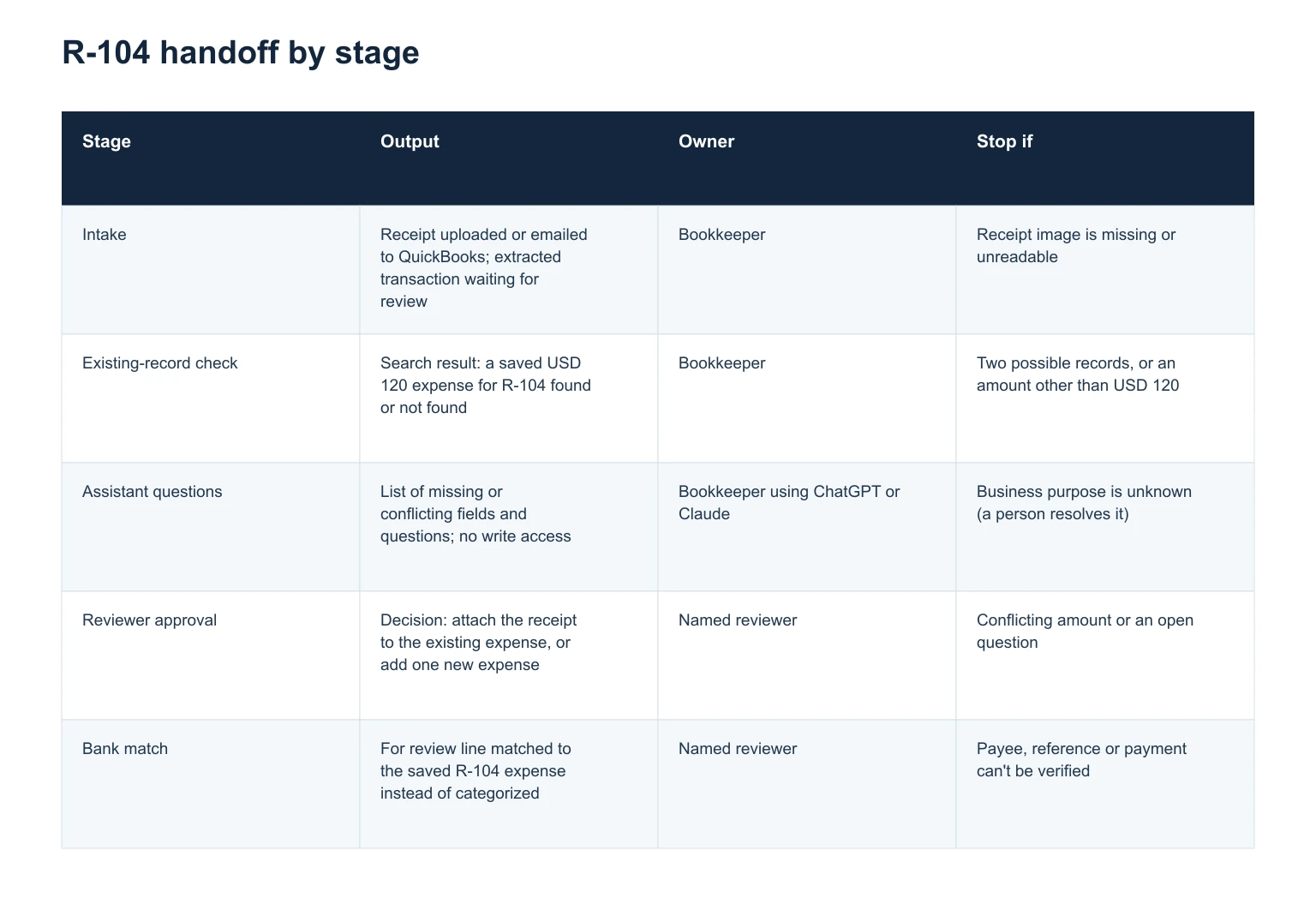
The table traces one hypothetical USD 120 software-renewal receipt, R-104, through five stages: intake, existing-record check, assistant questions, reviewer approval and bank match. Each row gives the expected output, the owner and the condition that stops the flow. A missing business purpose or a conflicting amount stays with a person.
Stage: Intake; Output: Receipt uploaded or emailed to QuickBooks; extracted transaction waiting for review; Owner: Bookkeeper; Stop if: Receipt image is missing or unreadable
Stage: Existing-record check; Output: Search result: a saved USD 120 expense for R-104 found or not found; Owner: Bookkeeper; Stop if: Two possible records, or an amount other than USD 120
Stage: Assistant questions; Output: List of missing or conflicting fields and questions; no write access; Owner: Bookkeeper using ChatGPT or Claude; Stop if: Business purpose is unknown (a person resolves it)
Stage: Reviewer approval; Output: Decision: attach the receipt to the existing expense, or add one new expense; Owner: Named reviewer; Stop if: Conflicting amount or an open question
Stage: Bank match; Output: For review line matched to the saved R-104 expense instead of categorized; Owner: Named reviewer; Stop if: Payee, reference or payment can't be verified

Compare the receipt with the bank line before matching. A shared amount and date narrow the search but don't confirm it's the same payment.
When to stop an uncertain handoff
When any of these applies, stop the flow and assign a reviewer:
the receipt or its business purpose is missing
totals conflict between the receipt, extracted details and bank line
a record for the same payment may already exist
a permission or sign-in check fails
the screen a desktop flow expects has changed
the last save has an uncertain outcome
Microsoft says desktop flows stop on an error by default. Builders can configure handling for individual actions and blocks; an individual action has an On error option. Set a failed handoff to return the item and a note to its reviewer.
Before retrying an uncertain write, inspect the saved records in QuickBooks and their audit history. Audit log access requires admin permissions; ask the primary admin if the reviewer cannot see it. Repeating a create-expense action after the expense was saved can add a duplicate. Confirm what happened before deciding whether another attempt is needed. If a button or field has moved, have a person update and retest the flow.
Pilot the workflow before you expand it
Rehearse synthetic cases outside the live books. For a pilot inside the live QuickBooks company, use only approved genuine records. Cover four situations:
A normal receipt with no existing record, which should end as one new expense.
A duplicate, where a saved expense already exists and the receipt should be matched to it.
Missing context, such as no business purpose, which should stop with the reviewer.
An interrupted handoff with an uncertain save, where the reviewer confirms the saved outcome, with help from an admin if audit-log access is needed.
Write down the expected outcome for each case, then compare it with the recorded IDs and amounts in QuickBooks. Count corrections and reviewer time so you can decide whether to keep the automated step. Expand only after the reviewer has verified the expected outcomes. Month-end checks sit outside this receipt flow; reviewing P&L variances with ChatGPT or Claude covers that after-the-fact review.
Where Booke fits
If the larger job is daily bank-feed work across QuickBooks files, Booke for QuickBooks Online is built for teams that already keep their books in QuickBooks Online. It handles bank-feed work, document matching and reconciliation prep, QuickBooks stays the system of record, and people keep final review and close responsibility. The receipt design on this page is generic. It doesn't describe Booke's internals, and nothing here suggests Booke uses ChatGPT or Claude or runs this receipt bot.
Questions about this receipt workflow
Can I use Claude instead of ChatGPT for the review step?
Yes. Use whichever assistant your organization has approved, with the same supplied fields, prompt and reviewer checks described in Step 3.
Should the assistant post the R-104 expense to QuickBooks?
The assistant returns questions in this design. A person or an authorized integration carries out the approved add or match action in QuickBooks.
What if the bank line doesn't show USD 120 for R-104?
Stop and hand it to the reviewer. A conflicting amount is one of the stop conditions, and QuickBooks bases its suggested matches on the same amount, so a different figure needs an explanation from the documents before anything is matched or categorized.
Does matching the bank line finish the reconciliation?
No. Matching links the downloaded transaction to the expense you already saved, which keeps it from being recorded twice. Reconciling the account for the period is a separate task.
How this article was prepared
This article is a proposed workflow design and doesn't report on a tested setup. Statements about QuickBooks, Power Automate, ChatGPT and Claude come from the Intuit, Microsoft, OpenAI and Anthropic documentation listed in Sources, and statements about Booke come from Booke's current product pages. The R-104 receipt and the controls around it are illustrative. Sources checked on 11 September 2026.
Explore Booke AI workflows
Sources