How to Review Your QuickBooks P&L with ChatGPT or Claude (2026)

Compare two QuickBooks P&L periods, ask ChatGPT or Claude about unexplained changes, and check the records before correcting the books.
What this review does, and where it stops
To review a QuickBooks profit and loss statement, compare equivalent periods, give ChatGPT or Claude a permitted copy of the report, investigate its questions against the underlying records, and verify any correction before saving it. This is an internal bookkeeping review, not an independent audit or assurance that the books are error-free.
A variance is the difference between the same account in two periods. In this file-based procedure, the chosen assistant works from the copy you supply. It cannot establish what happened from a payee, invoice or bank statement you have not provided. A named reviewer decides whether a change needs an explanation or a correction.
Run a Profit and Loss Comparison report you can compare
For more QuickBooks tasks, see the QuickBooks Online hub. Start this review by choosing comparable report settings.
Find Profit and Loss Comparison in the report list or the Find report by name dropdown.
Set the Accounting method to Accrual or Cash. Keep the same basis for both periods and record which you used.
Set the Report period deliberately. The default year-to-date comparison with last year is different from a comparison of two completed months.
Choose Previous Period (PP) for the preceding period, or Previous year (PY) for the same dates a year earlier.
Use Calculations to display $ change or % change.
Compare completed periods of similar length. A partial month can distort the comparison; some expenses may arrive early while others have not been recorded yet. For a seasonal business, consider whether the same period last year is a more useful comparison. Keep any filters consistent and note them with the export.
Export one untouched copy and one working copy
Select the report, then use Export/Print and Export to Excel. Intuit notes that data can appear missing when Excel opens the file in protected view; for your own trusted QuickBooks export, select Enable Editing to view the full report.
Retain the original download and create a separate analysis copy. OpenAI also recommends keeping source files unchanged and saving the analysis separately. The original preserves the before-review figures; your review log will explain any later changes.
Prepare the file before anything is uploaded
Before uploading the analysis copy:
Use an organization-approved workspace and data you are authorized to share.
Remove unnecessary bank/account numbers, customer and vendor details, and payroll information.
Inspect hidden tabs, comments and extra sheets before sharing the file.
Retain the account labels, both periods, accounting basis, currency and amounts needed for this comparison.
These preparation steps reduce what you share; they do not guarantee anonymity or replace permission to use client data. OpenAI states that Business, Enterprise and Edu data is not used to train its models by default. Anthropic states that inputs and outputs from commercial products such as Claude for Work are not used for training by default; feedback or an explicit opt-in can allow that use. Personal Claude plans have a separate policy. Check the terms and retention settings for the account you will use. A training default does not promise zero retention.
If sharing is not permitted, practice with synthetic figures instead. Do not upload the original to ask either assistant to remove sensitive information afterward.
Ask ChatGPT or Claude for review questions
Attach the permitted copy in your approved ChatGPT or Claude workspace. Claude accepts CSV files; XLSX uploads require code execution and file creation to be enabled. Use this prompt with either assistant:
Review only the rows supplied in this monthly P&L comparison. Keep the source file unchanged and put your analysis in a separate table. Restate the two periods, accounting basis and currency. If any is missing, ask before continuing. Calculate current amount minus prior amount for each row. Where the prior amount is positive, also show the percentage change. For zero or negative prior amounts, show the dollar change and label the baseline separately. Do not add subtotals to their component rows or calculate net income from an incomplete selection of accounts. Rank a short list of changes worth investigating. Separate observed numbers from possible explanations, and label those explanations as hypotheses. Ask for missing business context instead of inventing it. For each question, say what transaction detail or supporting documents the reviewer should obtain. Cite a specific transaction or invoice reference only if it appears in the supplied data. Do not conclude that a variance proves an error or duplicate. Do not propose journal entries, deletions or automatic edits.
Start with one analysis and one focused follow-up on unresolved rows. Check the returned periods and arithmetic yourself; further investigation belongs with the records and reviewer. The table below is a hypothetical example.
Selected account changes in a hypothetical month
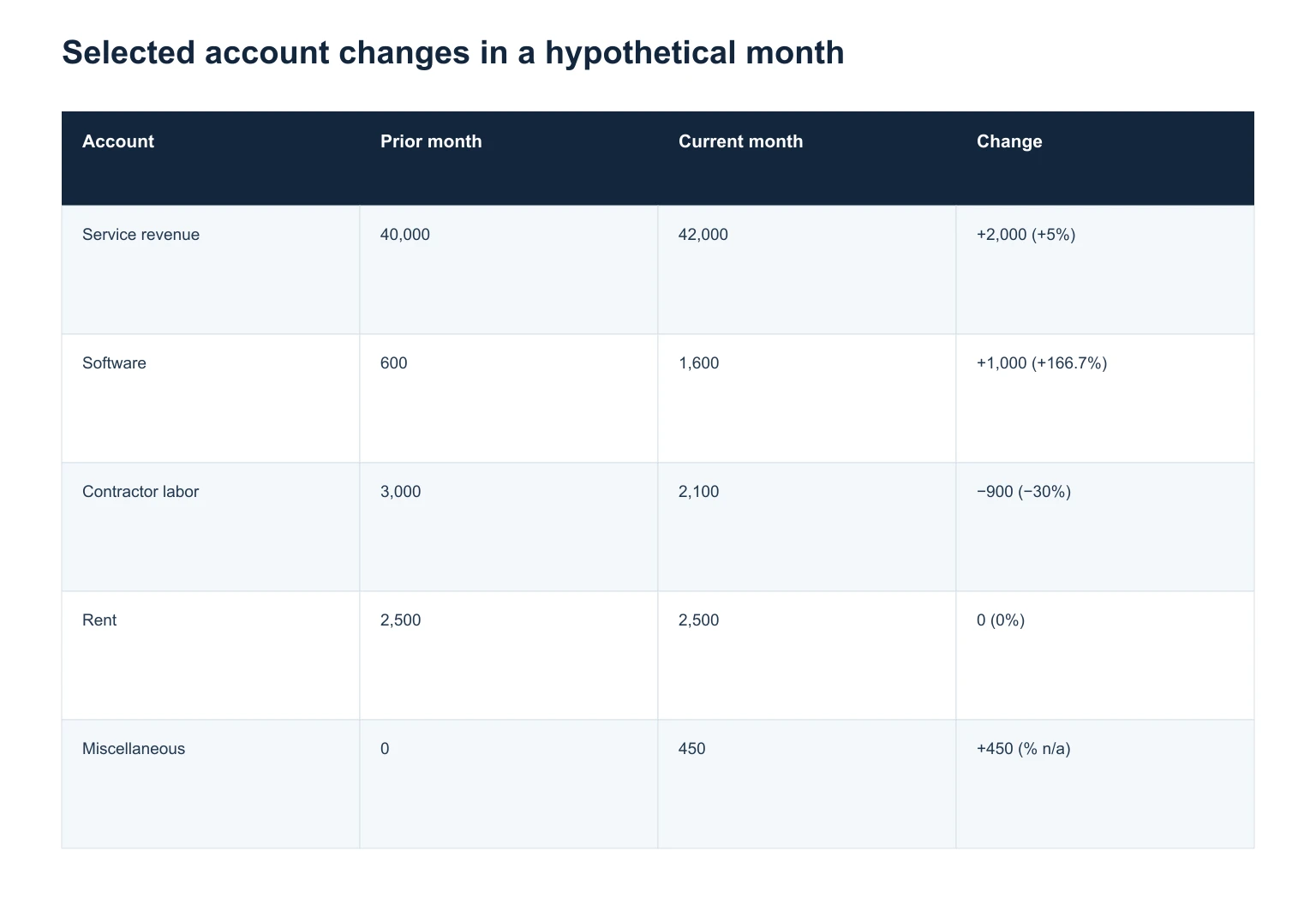
Selected accounts from an invented monthly comparison, in USD. This is not a complete P&L and cannot be summed to net income. The zero prior balance for Miscellaneous has no percentage change.
Account: Service revenue; Prior month: 40,000; Current month: 42,000; Change: +2,000 (+5%)
Account: Software; Prior month: 600; Current month: 1,600; Change: +1,000 (+166.7%)
Account: Contractor labor; Prior month: 3,000; Current month: 2,100; Change: −900 (−30%)
Account: Rent; Prior month: 2,500; Current month: 2,500; Change: 0 (0%)
Account: Miscellaneous; Prior month: 0; Current month: 450; Change: +450 (% n/a)
Reading the flags
Software rises from $600 to $1,600: +$1,000, or +166.7%. An annual renewal, an extra license or a posting issue are possible explanations. The two totals cannot tell you which is correct. Start with the software entries and their invoices.
Contractor labor falls by $900, or 30%. Check whether the work changed, a bill is missing or an amount belongs to another period. Treat each explanation as a question until the records support it.
Miscellaneous rises from zero to $450, so review the new entries without a percentage. Revenue's 5% increase may also deserve attention depending on expected sales and business context. An unchanged rent total shows no variance; it does not prove that every underlying entry is correct.

One export stays sealed as the record; the reduced copy is the only file you upload.
Verify every flag inside QuickBooks
For an account-level report, Intuit documents Settings, then Chart of accounts: find the account and select Run report in the ACTION column or from the View register dropdown. Match the review period, basis and filters where applicable. If the detail does not agree with the flagged P&L amount, resolve that difference before drawing conclusions.
Review the entries and supporting invoices, bills or statements for large changes, wrong accounts, timing differences, suspected duplicates and new or negative balances. A summary total cannot establish that a transaction was recorded twice or that its category is wrong.
For a suspected duplicate, compare the payee, invoice or reference, linked bill/payment records, and the bank or credit card statement. Matching dates and amounts alone are insufficient. Intuit says an entry appearing once on the statement but twice in QuickBooks is likely a duplicate. Two real charges require a different investigation.
Intuit lists overlapping imports, reconnecting an account, adding a downloaded transaction instead of matching it, and recording a sale twice as possible causes. Establish which records represent the same event before changing anything.
Correct confirmed errors; escalate uncertain treatment
An unposted bank-feed item and a record already in the books need different treatment. For a confirmed downloaded duplicate still in For review, select its checkbox, then select Exclude. It moves to Excluded and will not be added to QuickBooks or downloaded again. If you excluded it by mistake, find it in Excluded and select Undo.
Exclusion does not correct an already posted record. For an amount assigned to the wrong account, our list of business expense categories shows which account it belongs in. Take reconciled entries, closed periods, payroll or tax adjustments, and uncertain accounting treatment to your accountant before editing them.
Use the audit log when you need a record's history, including a deleted transaction. Admin access is required; ask your primary admin if you cannot see it. The log also includes automatic activity under system profiles such as Online Banking Administration, so an unfamiliar name is not by itself evidence of a problem.
Log the review and re-run the report
Keep one row per question, recording the account, the question you asked, the source transaction or reference, the evidence you checked, the decision, and the reviewer's name. Keep a short second list for anything still open, because unresolved items are what gets lost between months.
Some rows close with no edit. A renewal that fell in the current month is an explanation, and the log should say so. After approved changes, re-run the report over the same period, on the same accounting basis, with the same filters, and set it against the untouched export. Check the related records as well: a corrected balance with an orphaned bill behind it has moved the problem rather than fixed it.
When the review points to recurring bank-feed work
If these reviews repeatedly uncover categorization or missing-document work, assess how those tasks are handled during the month. Booke AI supports daily bank-feed work, document matching and reconciliation preparation inside QuickBooks Online. QuickBooks remains the accounting system of record, and people retain final review and close responsibility. See the AI bookkeeper for QuickBooks Online page for the product's scope.
Questions the procedure raises
Can a summary P&L prove that a transaction is a duplicate?
No. Compare the underlying entries, references and bank statement. Intuit describes a transaction appearing once on the statement and twice in QuickBooks as likely duplicated; a summary variance alone does not establish that.
What if the prior amount is zero or negative?
Show the dollar difference and label the baseline separately. In the example, Miscellaneous changes from $0 to $450, so the dollar change is +$450 and the percentage is not applicable. The suggested prompt also leaves percentages out for negative prior balances.
Should I choose Cash or Accrual?
Use the basis appropriate to the review and keep it consistent across periods. QuickBooks offers both in the Accounting method control. Ask your accountant if you are unsure which basis to use.
Which corrections should go to my accountant?
Take reconciled entries, closed periods, payroll or tax adjustments, and any uncertain treatment to the accountant responsible for the books. Keep the evidence and the question together so they can assess the proposed change.
How this guide was checked
QuickBooks steps here follow Intuit's help documentation for the Profit and Loss Comparison report, report export to Excel, the audit log, and duplicate bank-feed transactions. File support and the data-handling statements follow OpenAI's and Anthropic's published documentation. Figures in the worked example are invented for illustration. Sources checked on 10 September 2026.
Explore Booke AI workflows
Sources