QuickBooks Automation Examples: 5 Workflows and How to Choose the Right Layer

Five QuickBooks automation examples, plus a native-feature-first rule for deciding when a bank rule, a language assistant, an authorized integration, or a person should do the work.
Start with the QuickBooks Online feature built for the job. Bank rules, suggested categories in the bank feed queue, receipt upload with matching, and the Profit and Loss Comparison report cover a lot of recurring work. Rules, suggestions, and uploaded receipts each land in a review step before they reach the books, and the comparison report is something you read, not something that posts. ChatGPT is documented for cleaning and analyzing data files you export and hand over, and its output is advisory. Robotic process automation belongs to repetitive screen work that no feature or authorized integration covers, and a person still approves every posting, edit, and reconciliation sign-off.
What automating QuickBooks actually means
The five QuickBooks automation examples below run on different layers, and mixing them up is where teams get hurt. Booke AI's bookkeeping automation software page describes the split well: rules repeat deterministic choices, OCR extracts document data, AI recommends a category, and a complete implementation also defines where the work happens, which records are eligible, what evidence is required, and when a person reviews the result.
Layer matters because each one fails differently. A badly written bank rule repeats the same wrong category until somebody notices at close. An assistant works from the file you gave it, so an export mistake becomes an analysis mistake. A desktop flow fails when a run-time error occurs unless you build error handling, and recovery for a missing or changed UI element is limited to the self-healing preview for Element not found errors.
Three things to carry into the rest of this guide:
QuickBooks Online can categorize downloaded transactions automatically through rules you create, and you still review what those rules produce.
Robotic process automation repeats rule-based steps on a workstation. It has no view of accounting meaning.
The question is never which tool is smartest. It is which layer can do this specific task, and who checks the output.
How to choose the automation layer for any QuickBooks task
Run any candidate task through four questions in order, and stop at the first yes.
Does a documented QuickBooks Online feature already do this? Use it. Native work happens inside the ledger, and the documented rule, suggestion, and receipt paths each land in a review step.
If not, can an authorized integration that the firm provisions as a user in QuickBooks Online do it? That is the next stop before any screen script.
If neither, is the task repetitive rule-based screen work that a person can supervise and re-run safely? Only now does RPA enter the conversation.
What does an assistant add? At most, questions and drafts built from data you exported, checked before anything reaches a client or the ledger.
Underneath all four sits one constant: name the person who approves the result. If you cannot name them, the workflow is not ready.
This page stays on examples and layer choice. For a walkthrough of combining ChatGPT, RPA, and QuickBooks in one workflow, read the companion article.
Layer selection at a glance
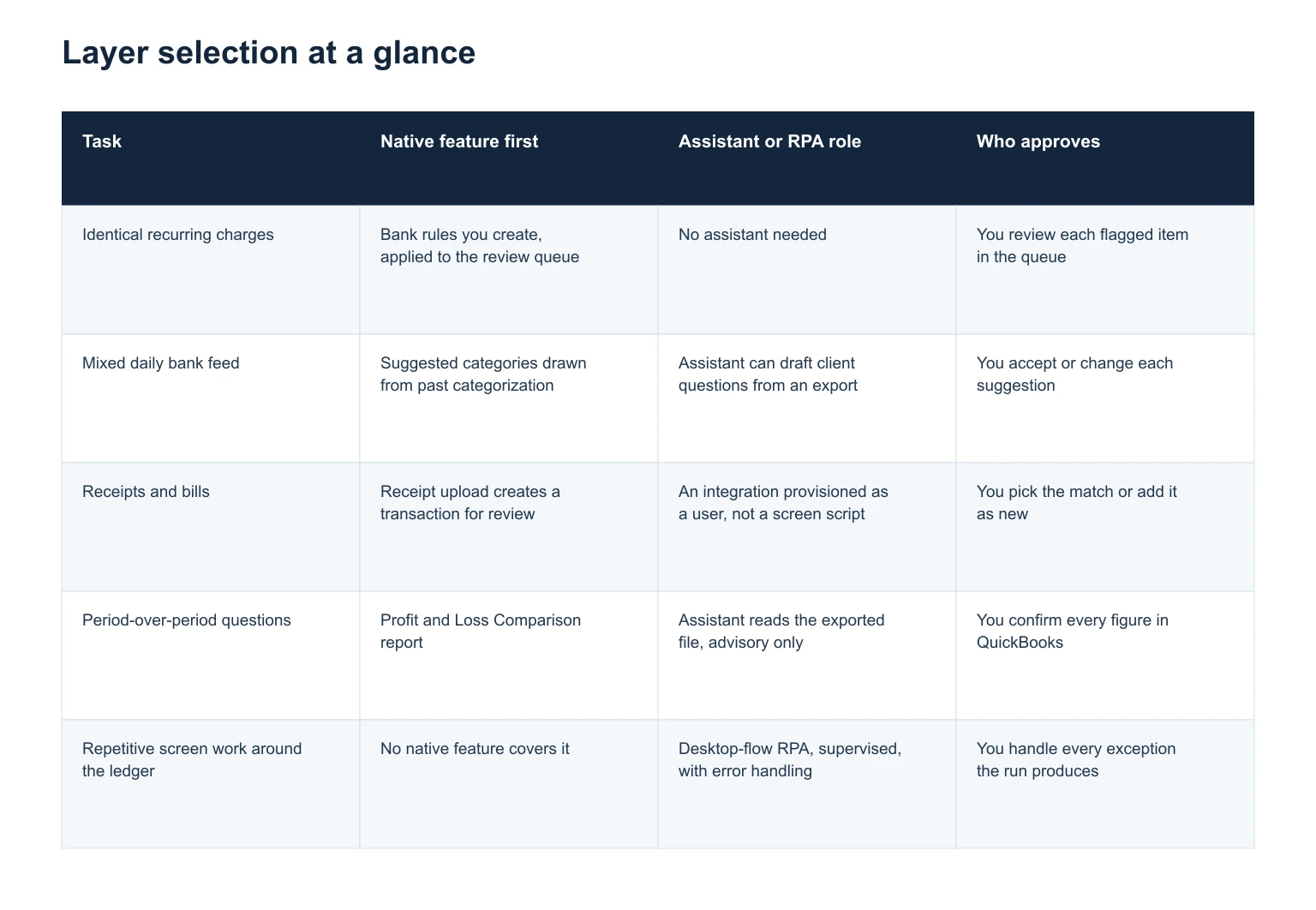
Five common QuickBooks tasks with the native feature to try first, the limited role an assistant or RPA can hold, and the person who approves the result in each case.
Task: Identical recurring charges; Native feature first: Bank rules you create, applied to the review queue; Assistant or RPA role: No assistant needed; Who approves: You review each flagged item in the queue
Task: Mixed daily bank feed; Native feature first: Suggested categories drawn from past categorization; Assistant or RPA role: Assistant can draft client questions from an export; Who approves: You accept or change each suggestion
Task: Receipts and bills; Native feature first: Receipt upload creates a transaction for review; Assistant or RPA role: An integration provisioned as a user, not a screen script; Who approves: You pick the match or add it as new
Task: Period-over-period questions; Native feature first: Profit and Loss Comparison report; Assistant or RPA role: Assistant reads the exported file, advisory only; Who approves: You confirm every figure in QuickBooks
Task: Repetitive screen work around the ledger; Native feature first: No native feature covers it; Assistant or RPA role: Desktop-flow RPA, supervised, with error handling; Who approves: You handle every exception the run produces
Example 1: Let bank rules handle predictable, recurring transactions
When transactions download from your bank, they have to be categorized so they enter the right accounts, and bank rules can do that automatically. QuickBooks applies your rules to transactions in the For review tab, which Intuit describes as the ones you need to review every day. A rule fills in a decision you already made. It does not move the item past you.
Rules earn their place when the bank description alone settles the answer: the same monthly software subscription, a fuel card used only for the delivery van, the merchant processor's daily deposit.
They cause damage when the description hides the facts. A hardware store charge might be a repair or a fixed asset. An owner's card can carry personal and business spend in the same week. If you would need to look at a receipt to decide, do not write a rule for it.
One related setting changes what shows up in your vendor list. QuickBooks recognizes common vendors from bank transactions and will add new vendors to your account automatically, and you can turn that option off in Bank transactions settings if you would rather control the list yourself.
Example 2: Work the review queue where suggestions still need a decision
QuickBooks Online suggests categories for automatically downloaded transactions based on how you categorized similar transactions in the past. Those downloads arrive in a queue with a suggestion attached, and the documented instruction is to review each transaction and then act on it. The suggestion inherits your history, including the parts of your history that were wrong.
Two timing facts shape when you sit down to this work. QuickBooks tries to update bank transactions automatically every 24 hours, and it will not download pending transactions. A card charge that has not settled is simply absent, which explains a fair amount of Monday morning panic about a balance that looks short.
Before accepting a suggestion, check the vendor against the description, check the account against what the money actually bought, and check whether the item is already in the books from an invoice, a bill, or an uploaded receipt. Intuit's help articles label this queue differently in different places, so go by what your own file shows rather than a screenshot in a blog post. Our list of business expense categories shows which account each kind of expense belongs in, with its Schedule C line.
Example 3: Capture receipts, then match instead of re-entering
Upload a receipt from a computer or mobile device and QuickBooks extracts the information and creates a transaction for you to review. From there you can edit the receipt, add it to an account, or match it to an existing transaction. When QuickBooks finds candidates, it shows the number of matches and you select the one you want to match the receipt with.
That selection is your duplicate control. A purchase can reach the books twice, once as a photographed receipt and once through the bank feed, and the match step is where two records become one. Add a receipt as a new transaction only when the feed has nothing to match against, and keep in mind that an unsettled card charge will not be there yet.
When receipt volume outgrows what a person can review by hand, the scaling answer is an authorized integration the firm provisions as a user, not a script typing into forms on somebody's desktop.
Example 4: Ask ChatGPT to question a P&L comparison
The Profit and Loss Comparison report compares income and expenses across periods so you can see how the business is performing over time. By default it shows the current year-to-date and the same period last year, and you choose accrual or cash before reading anything into the numbers.
Export the report, then hand the file to an assistant. OpenAI documents ChatGPT for cleaning and analyzing supplied data files and producing analyses that other people can review and rerun, with the caveats stated in the output. That is the entire job here. The assistant sees the file you uploaded and nothing else.
A short prompt that does useful work:
Here is a Profit and Loss Comparison export, current year-to-date against the same period last year, accrual basis. List the ten largest changes by dollar and by percent, mark which ones could be timing rather than a real change, and write the questions I should take to the client. Do not assume any variance is an error.
Then verify. Every account name, period, and figure the assistant mentions gets confirmed in QuickBooks before it reaches a client email, and a variance stays a question until your own review says otherwise. For the full method, see how to review your QuickBooks P&L with ChatGPT and automation.

Routine items keep moving. Anything uncertain gets set aside for a person to explain.
Example 5: Where robotic process automation fits, and where it does not
Microsoft describes desktop flows as robotic process automation for repetitive desktop processes, built from prebuilt drag-and-drop actions or by recording a flow to run later, and aimed at people performing simple or complex rule-based tasks on their workstations. Rule-based is the phrase to hold onto. A flow repeats the steps it was given. It has no idea what a prepaid expense is.
A plausible use, under supervision, is the clerical work around bookkeeping rather than the bookkeeping itself: collecting statement PDFs from a portal into the folder your team reconciles from, renaming exported reports to a naming convention, assembling a month-end working paper folder. None of that has been tested here against a live QuickBooks company file, and RPA is not an authorized QuickBooks integration path.
Plan for failure before you build anything. Run-time errors occur during execution and make desktop flows fail unless you use the available error-handling options. Self-healing is a preview feature, available only for specific UI and browser automation actions that interact with a single element, and only for Element not found errors. It is a recovery aid for a moved button, not protection for accounting data.
The disqualifiers are easy to state. If a step chooses a category, posts an entry, or signs off a reconciliation, it is not an RPA task.
Where a person has to stop and approve
Reconciling means matching the transactions you entered in QuickBooks with your bank and credit card statements. Before you start, you need the statement for that account in hand, and every transaction for the statement period has to be added and categorized. Automation can get you to that starting line. It cannot sign off what comes after.
Five stop points, one per example:
A rule fires. You still review that item in the daily queue.
A suggestion appears. You accept it, change it, or reject it.
A receipt shows matches. You pick the right one or decide none of them fit.
An assistant reports a variance. You confirm it in the report before telling a client anything.
A flow finishes. You read its output as a draft, not as completed work.
Reconciliation exceptions stay open until a person can explain them. A difference nobody has explained is information, and closing over it is how small errors turn into restatements.
Handling failed or uncertain automated writes
Blind retries are how one failed run becomes three duplicate entries. Queue instead. Anything that fails, times out, or lands below your confidence threshold goes onto an exception list with the reason attached and a named owner, and it waits there. Re-run only after someone has confirmed what did and did not reach the ledger.
For the record of what changed, the QuickBooks Online audit log tracks account activities including user sign-ins, changes to settings, and edits to customers, vendors, employees, and payroll submission, and you can search it to find a deleted transaction such as an invoice. Events recorded in the log are available for two years.
If you expect to answer questions about a period after that window closes, keep your own copy of the exception list and the supporting documents with your workpapers. A dated note explaining why an item was left open is often more useful later than the entry itself.
Where Booke AI fits
Booke AI sits between the native features above and anything you would build yourself. Its public copy describes AI Bookkeeper working inside bank feeds already connected to QuickBooks Online, with no extra bank connection or separate ledger, categorizing eligible transactions, matching documents, and routing exceptions. QuickBooks Online remains the accounting system of record, and people retain final review and close responsibility, which is the same boundary set out in Booke's overview of AI bookkeeping operating models.
For QuickBooks teams the stated scope is the daily bank feed work, document matching, and reconciliation prep, without moving clients into another accounting system. AI Bookkeeper learns from recent QuickBooks Online transaction history, and older periods can be added with an optional paid add-on. The details sit on the AI bookkeeper for QuickBooks Online page.
Common questions about QuickBooks automation
When should I use a native QuickBooks Online feature instead of GPT or RPA?
Whenever one exists for the task. Bank rules, category suggestions, and receipt matching run inside the ledger with a review step already attached, so the work and the record stay in one place. Reach past them only when nothing native covers the job.
What can ChatGPT safely contribute to a bookkeeping review?
Analysis of files you export and supply, written up so colleagues can review and rerun it. OpenAI documents ChatGPT for cleaning data, exploring questions, and producing reviewable reports with caveats. Treat every output as advisory: confirm the figures in QuickBooks, and keep accounting decisions with the person who signs off.
Which QuickBooks tasks suit robotic process automation?
Repetitive, rule-based screen work around the ledger rather than inside it, such as gathering statement files or filing exported reports. Desktop flows target that kind of task. Run-time errors will stop a flow unless you build error handling, so every run needs a supervised exception list behind it.
How do I avoid duplicate transactions when receipts and bank feeds overlap?
Use the match step. An uploaded receipt creates a transaction for review, and when candidates exist QuickBooks shows how many matches it found so you can select one. Add a receipt as new only when nothing matches, remembering that unsettled charges are not downloaded yet.
Sources and how this was checked
Platform behavior in this article comes from Intuit's help articles on setting up bank rules, categorizing online bank transactions, reconciling an account, uploading receipts, running a Profit and Loss Comparison report, and using the audit log. The statements about robotic process automation scope, run-time errors, and the self-healing preview come from Microsoft Learn's Power Automate desktop flow documentation. The assistant statements come from OpenAI's ChatGPT use-case documentation on analyzing datasets and shipping reports. Booke AI statements come from current Booke product pages, and the full list of links appears in the sources for this article.
All of these were last checked on September 12, 2026. Help documentation changes without notice, so confirm anything time-sensitive against your own QuickBooks file before you act on it.
Explore Booke AI workflows
Sources